
How to File Form RT-6 in Florida's New eFile and Pay System: A Step-by-Step Guide
Armando Ramirez7 min read

Every Saved Login Just Stopped Working
On August 24, 2026, the Florida Department of Revenue retired the old reemployment tax eFile and Pay portal and moved Form RT-6 filing to a new system. Most employers hit it for the first time filing the third quarter 2026 report, due October 31, 2026. If a bookmark or a saved password used to get you straight into your account, it doesn’t anymore — credentials have to be entered manually the first time, and the navigation path has changed too. This walks through the new system screen by screen, from the Department of Revenue homepage to the confirmation number.
For the rates, wage base, and penalty math behind the number this form asks for, see our breakdown of what Miami employers actually owe on Form RT-6. This post is about actually getting the return filed in the portal that replaced the old one.
What You’ll Need Before You Start
Have three things on hand: your 7-digit Reemployment Tax (RT) account number, your FEIN or ITIN, and the employee counts and Social Security numbers for everyone paid wages during the quarter. The RT account number is the same one printed on every confirmation page you’ve ever received from the Department, and it’s also what a future password reset will ask for — worth saving somewhere more durable than a browser’s remembered password.
Filing Form RT-6, Step by Step
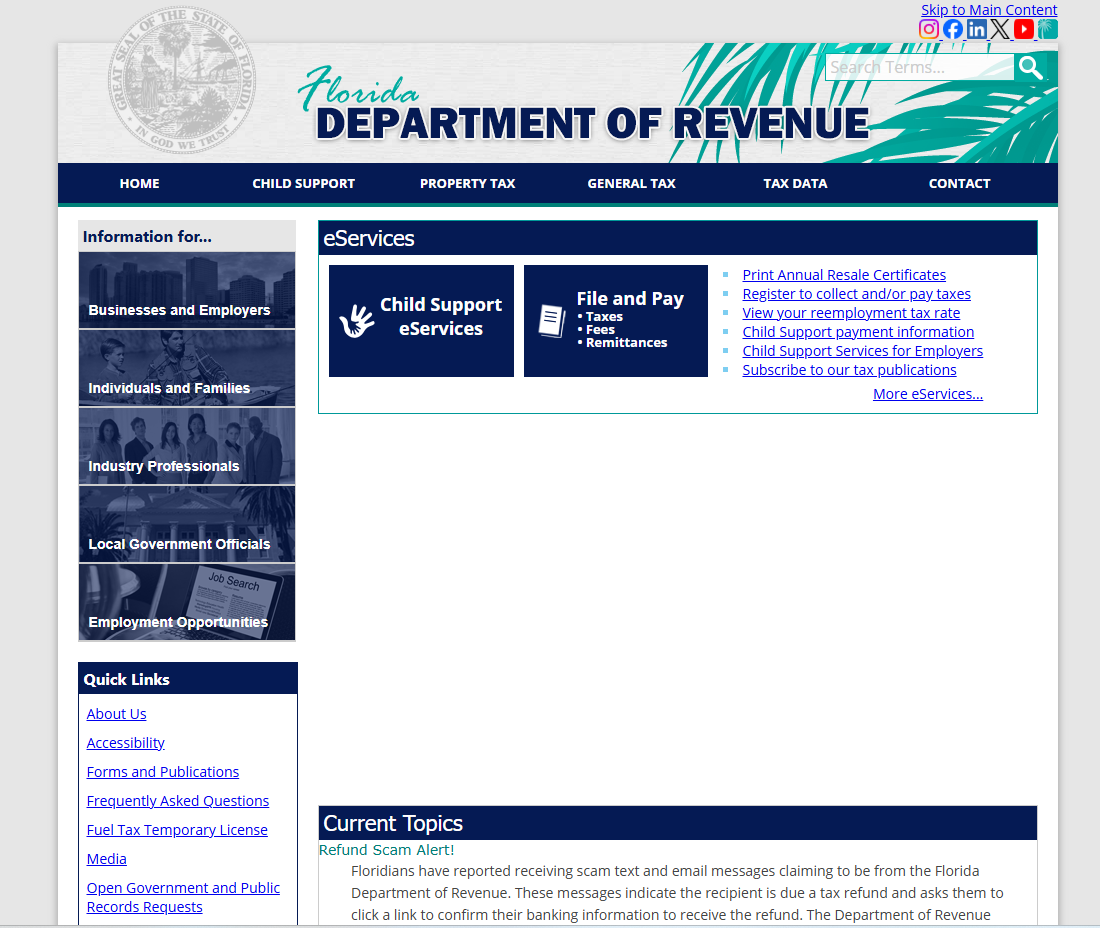
1. Start at the Florida Department of Revenue homepage
Go to floridarevenue.com and open the General Tax menu — this is the entry point for every tax type the Department administers, reemployment tax included.
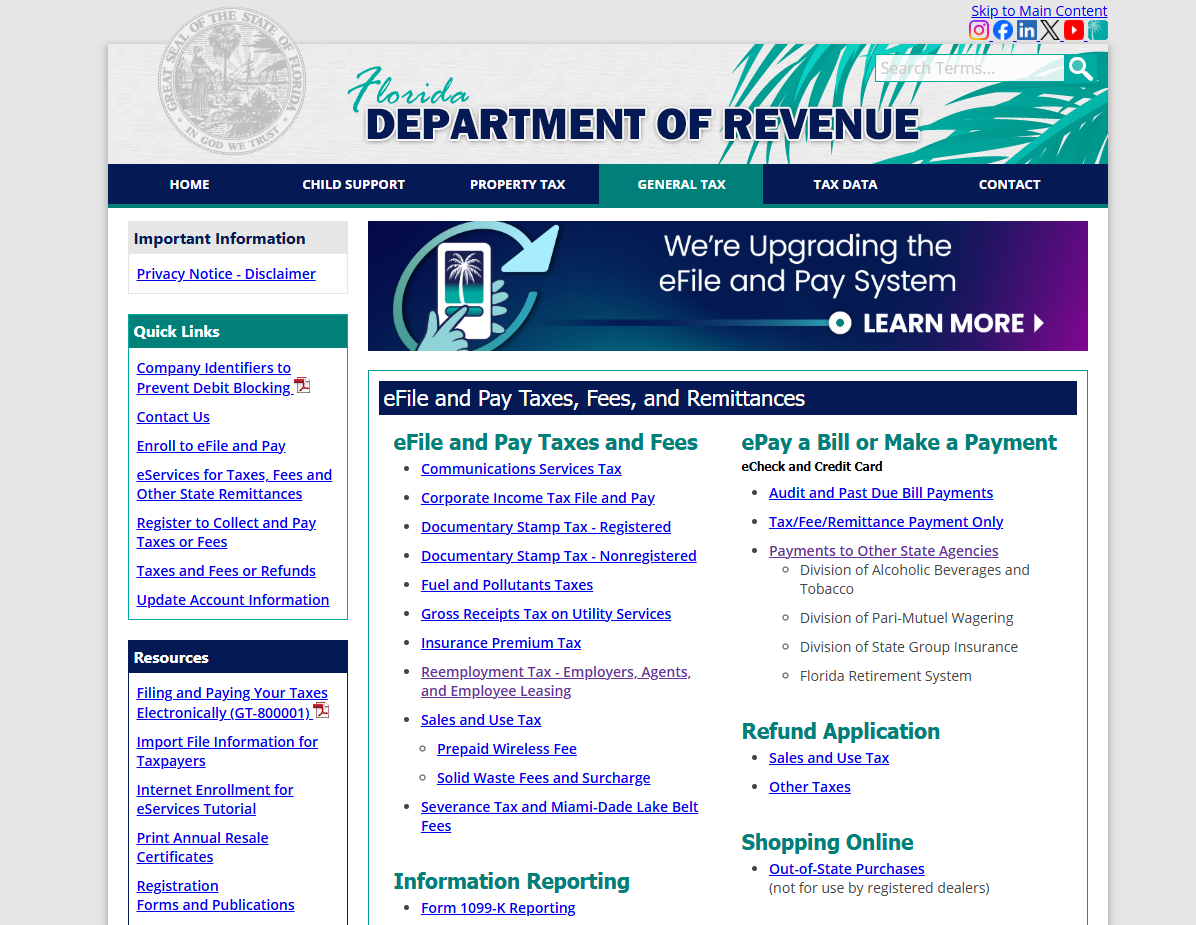
2. Select Reemployment Tax under eFile and Pay
Under “eFile and Pay Taxes and Fees,” choose “Reemployment Tax – Employers, Agents, and Employee Leasing.” It sits alongside sales tax, corporate income tax, and the Department’s other filings.
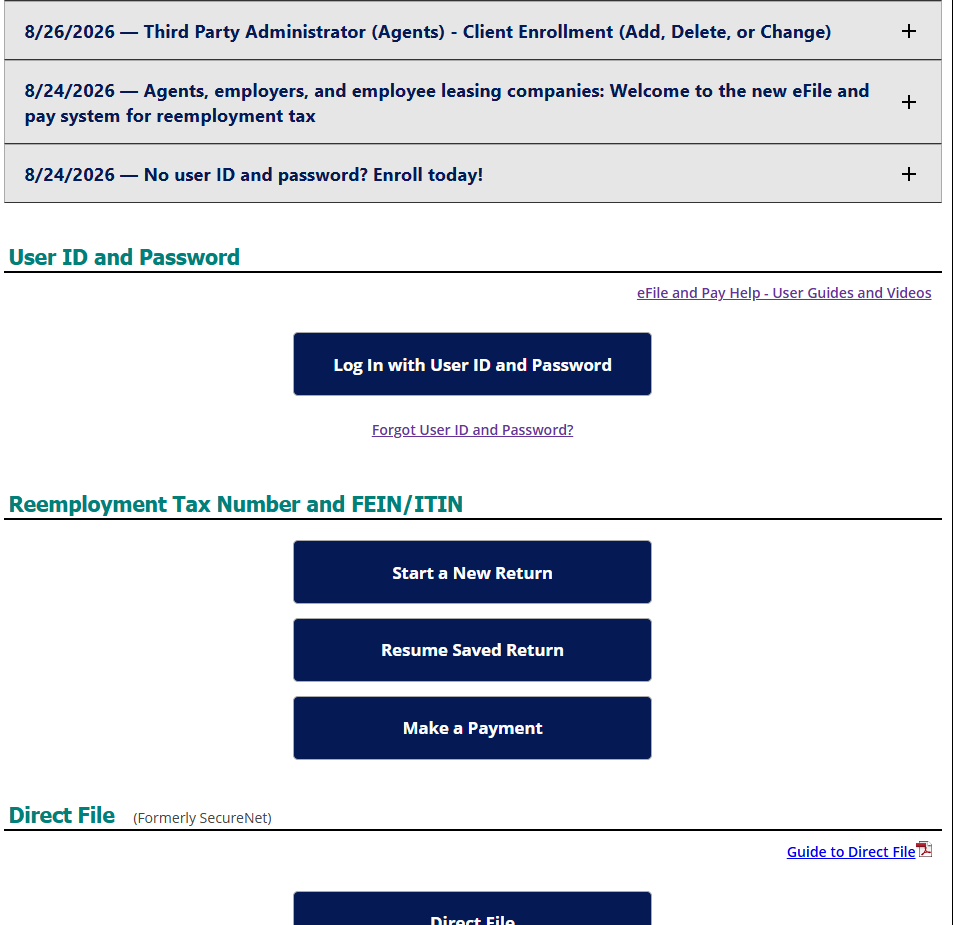
3. Click Log In
On the Reemployment Tax landing page, click “Log In with User ID and Password,” or use the Reemployment Tax Number and FEIN/ITIN option below it if you don’t yet have a saved password in the new system.
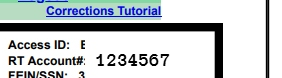
4. Log in with your RT account number
Your Reemployment Tax (RT) account number is a 7-digit number issued when you first registered, paired with your FEIN or ITIN. It’s the same number you’ll use for every future filing and password reset, and it shows up on every confirmation page you receive.

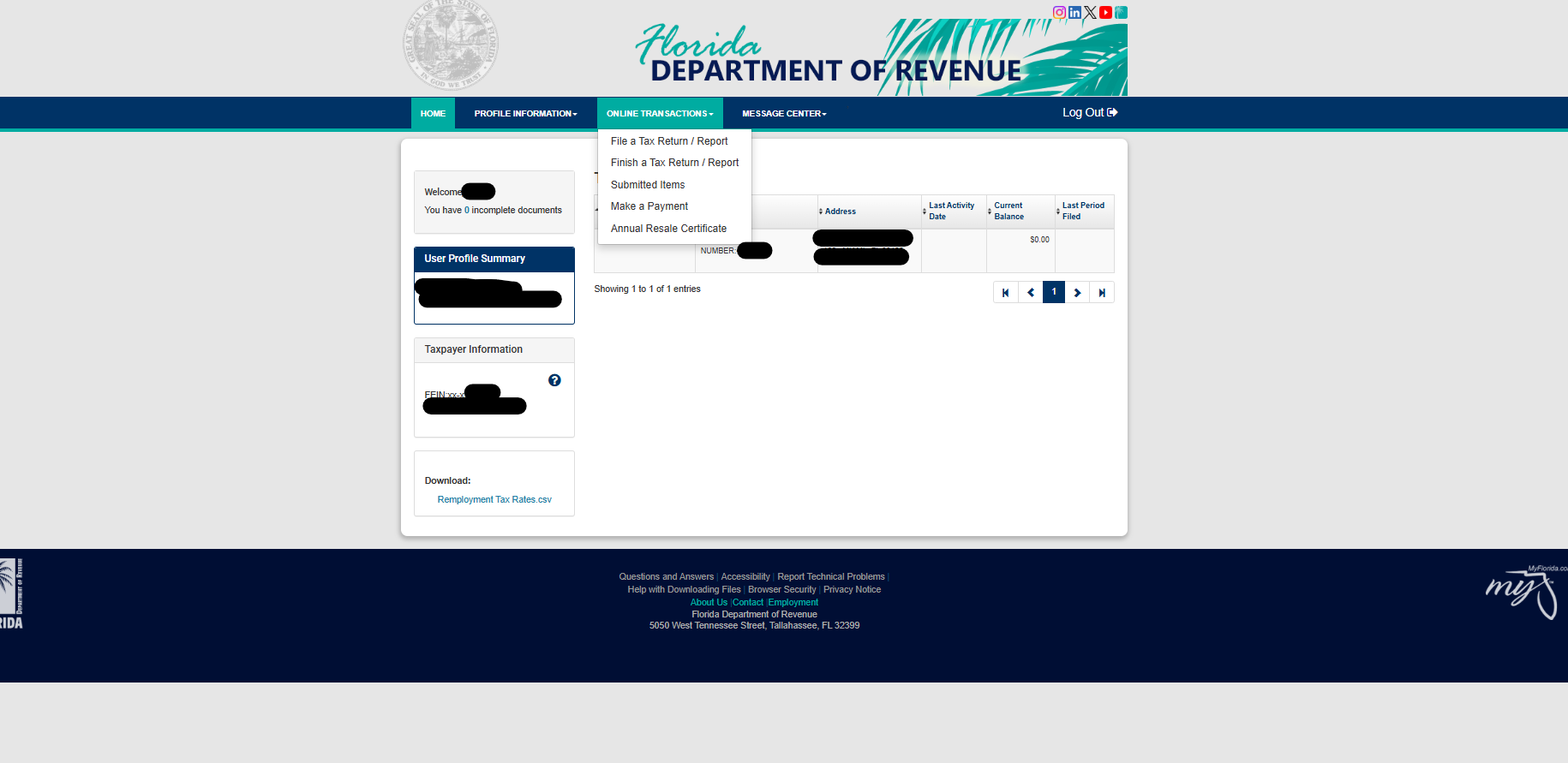
5. Open Online Transactions and choose “File a Tax Return / Report”
Once you’re logged in, you’ll land on your account dashboard. Open the Online Transactions menu and select “File a Tax Return / Report” to begin the RT-6.
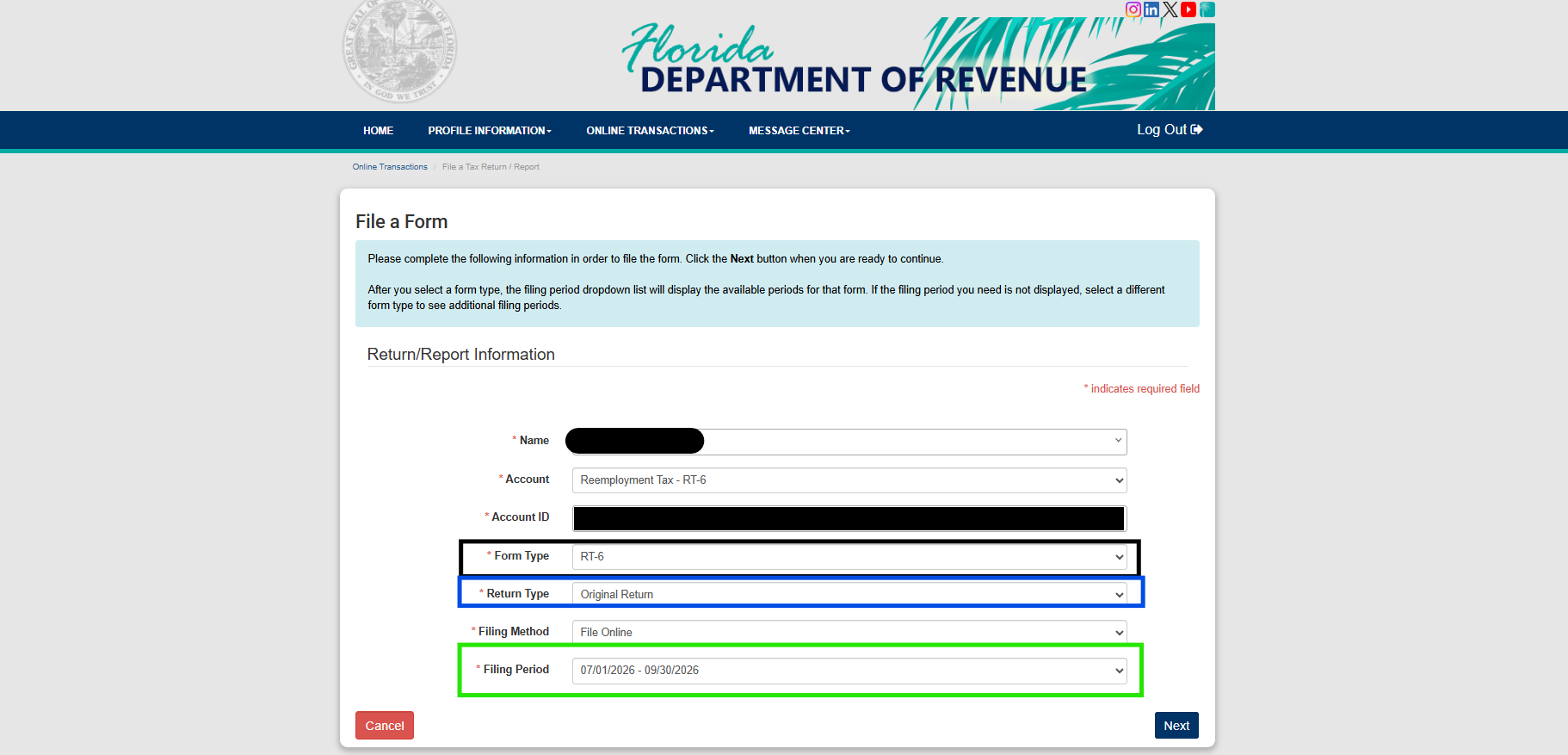
6. Start the filing under “File a Form”
Confirm your account, set Form Type to RT-6, Return Type to Original Return, Filing Method to File Online, and select the correct Filing Period before clicking Next.
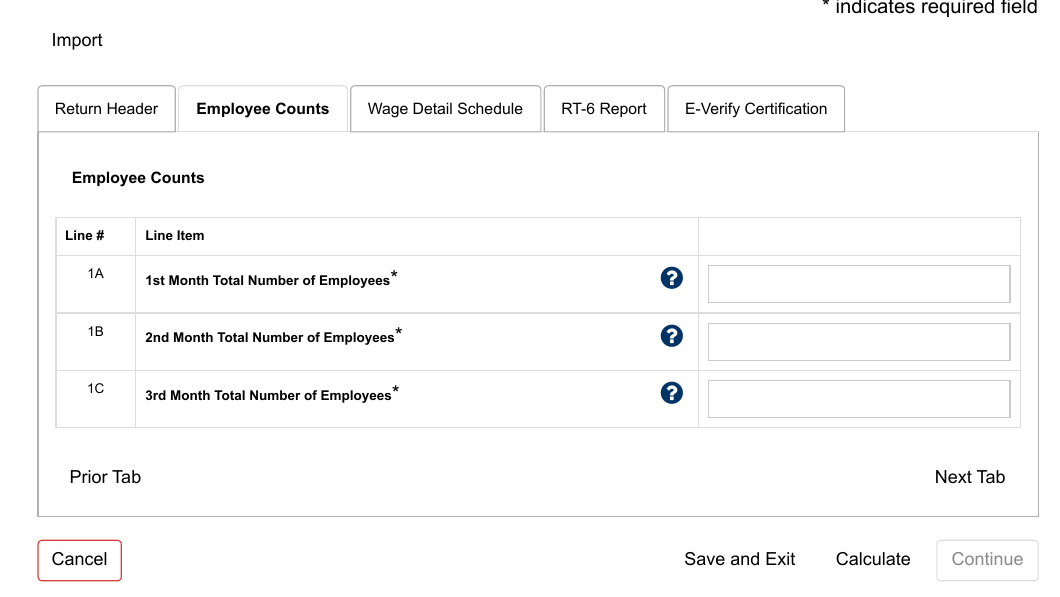
7. Enter Employee Counts
Report the total number of employees for each month of the quarter. All three fields are required, even if the count didn’t change month to month.
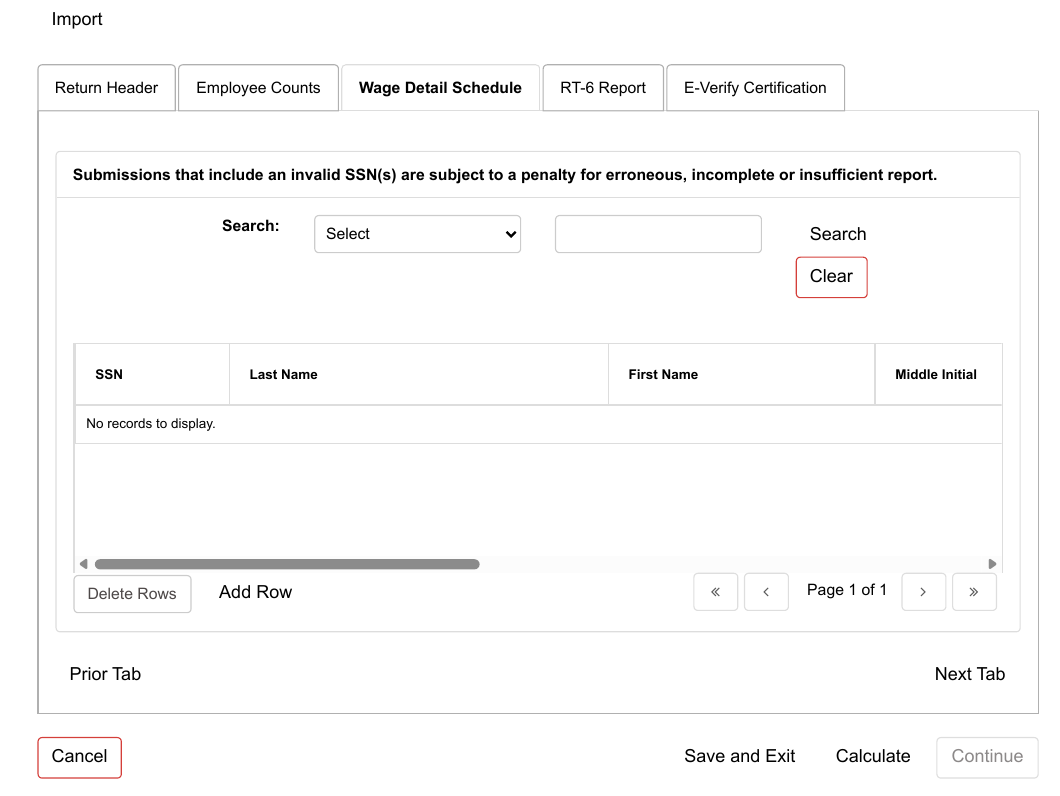
8. Complete the Wage Detail Schedule
List each employee by Social Security number, last name, first name, and middle initial. Double-check every SSN here — an invalid one can trigger a penalty for an erroneous or incomplete report on its own.
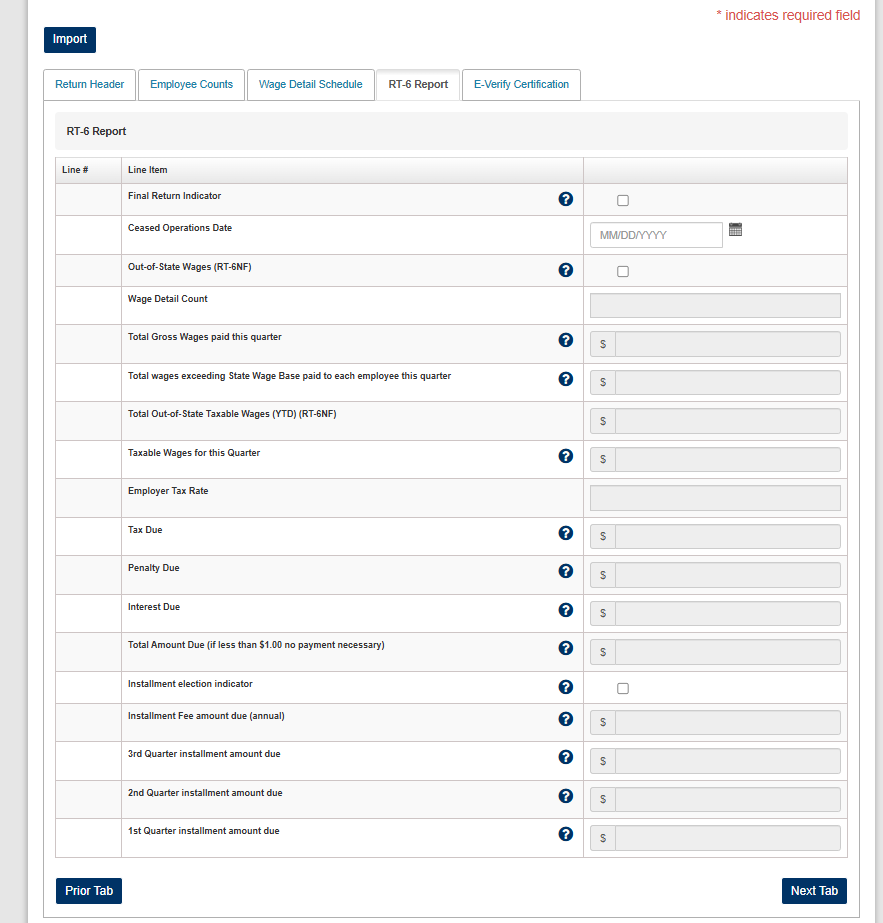
9. Fill out the RT-6 Report tab
This is the core of the return: gross wages, taxable wages, the employer tax rate, and the tax, penalty, and interest due are all entered or calculated here.
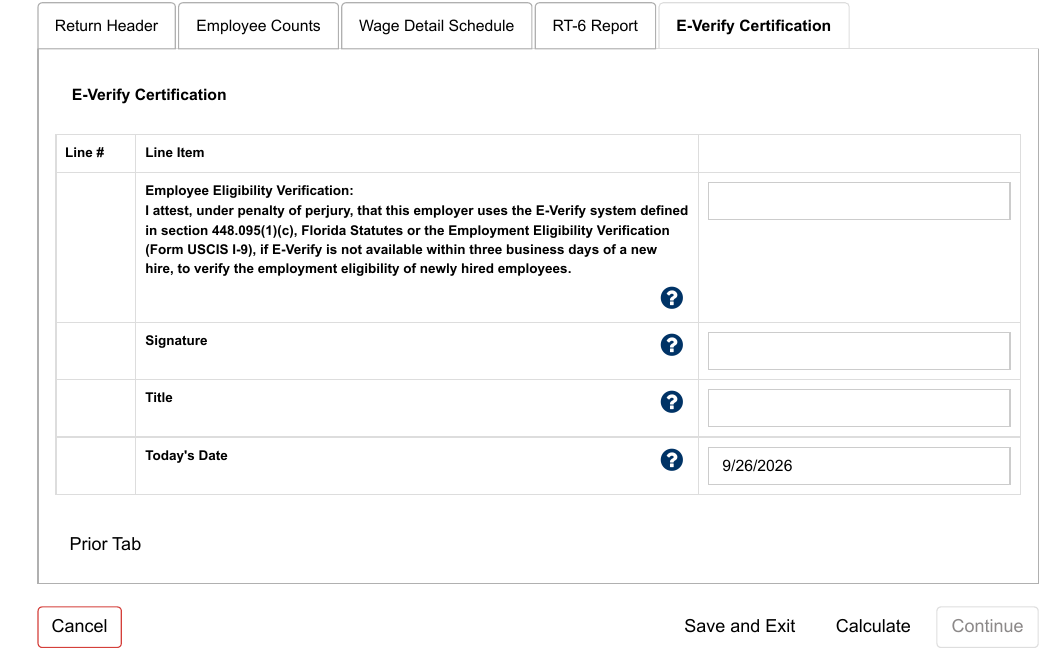
10. Sign the E-Verify Certification
Employers attest, under penalty of perjury, that E-Verify or Form I-9 was used to confirm the eligibility of newly hired employees, then sign and date the certification.
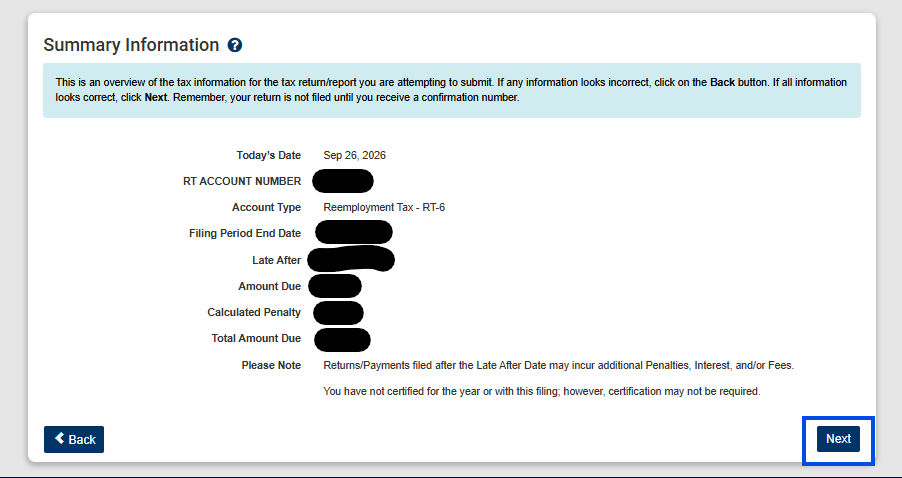
11. Review the Summary Information
Before submitting, the system shows an overview: filing period, amount due, and any calculated penalty. Nothing is filed until a confirmation number is issued, so this is the last chance to catch an error and go back.
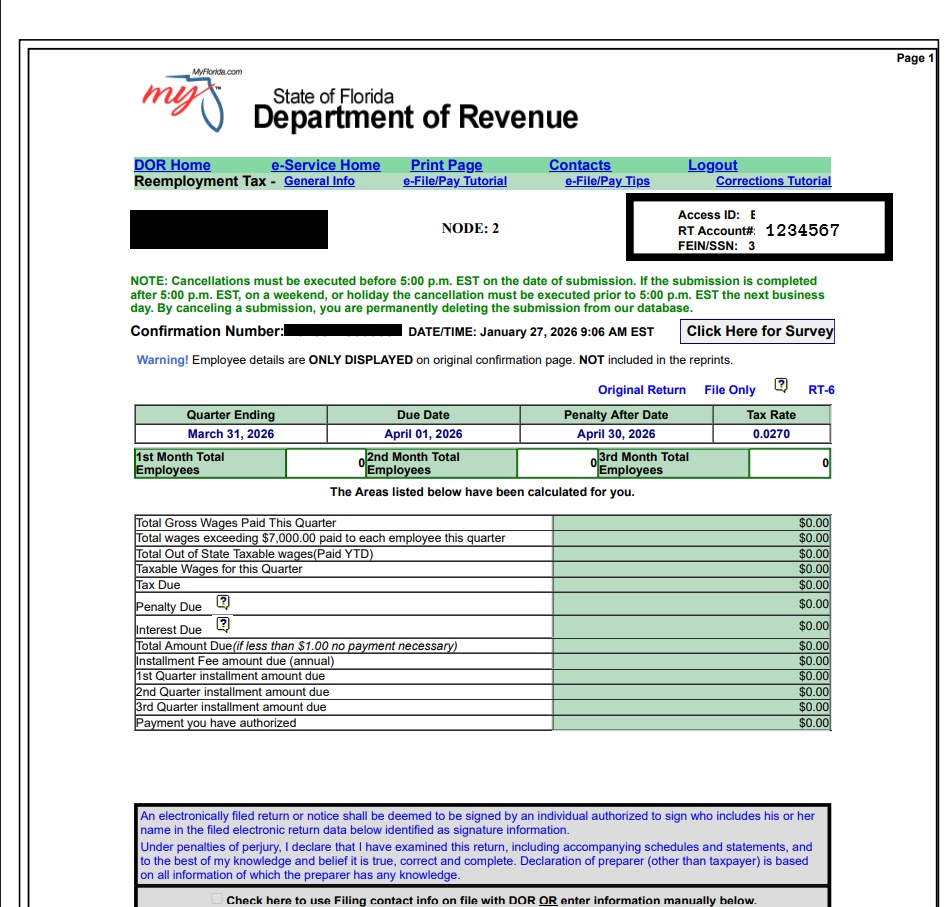
12. Save your confirmation
Once submitted, the confirmation page shows the confirmation number, date, and time of filing, along with the calculated wages, tax, and amount due. Keep this on file — it’s also what a future password reset will ask for.
Who Actually Has to File This Way
Electronic filing isn’t optional for every employer. It’s required if you had 10 or more employees in any quarter of the prior state fiscal year (July 1 through June 30), and for any preparer or agent filing on behalf of 100 or more employers. Below that threshold, paper filing is technically still allowed, and RT-6 forms are mailed automatically to employers who aren’t required to e-file. In practice, most payroll software files electronically regardless, so this distinction mostly matters to very small or first-year employers still handling payroll by hand. Filing on paper when electronic filing is required carries its own penalty — $25 per report plus $1 per employee, capped at $300 — on top of whatever the late-filing penalty already costs.
RT-6 Deadlines Don’t Change With the Portal
The new system changed how you file, not when. Form RT-6 is still due the last day of the month following the end of each calendar quarter:
| Quarter | Period Covered | Filing Deadline |
|---|---|---|
| Q1 | January – March | April 30 |
| Q2 | April – June | July 31 |
| Q3 | July – September | October 31 |
| Q4 | October – December | January 31 |
Late filings and late payments carry separate penalties, and interest accrues on any unpaid balance. If you need to file an amended or late return for a quarter from before the migration, that now routes through the new system too, regardless of which portal you originally used.
Made a Mistake After Filing? Don’t Re-File the Whole RT-6
Most errors show up in the wage detail, not the tax calculation — a transposed SSN, a name that doesn’t match Social Security’s records, a wage amount entered for the wrong employee. To fix a return you’ve already submitted, log back into the eFile portal and select the option to correct a prior report. This generates Form RT-8A, the Department’s dedicated correction form, rather than requiring you to re-file the entire RT-6 from scratch.
Locked Out After the Migration?
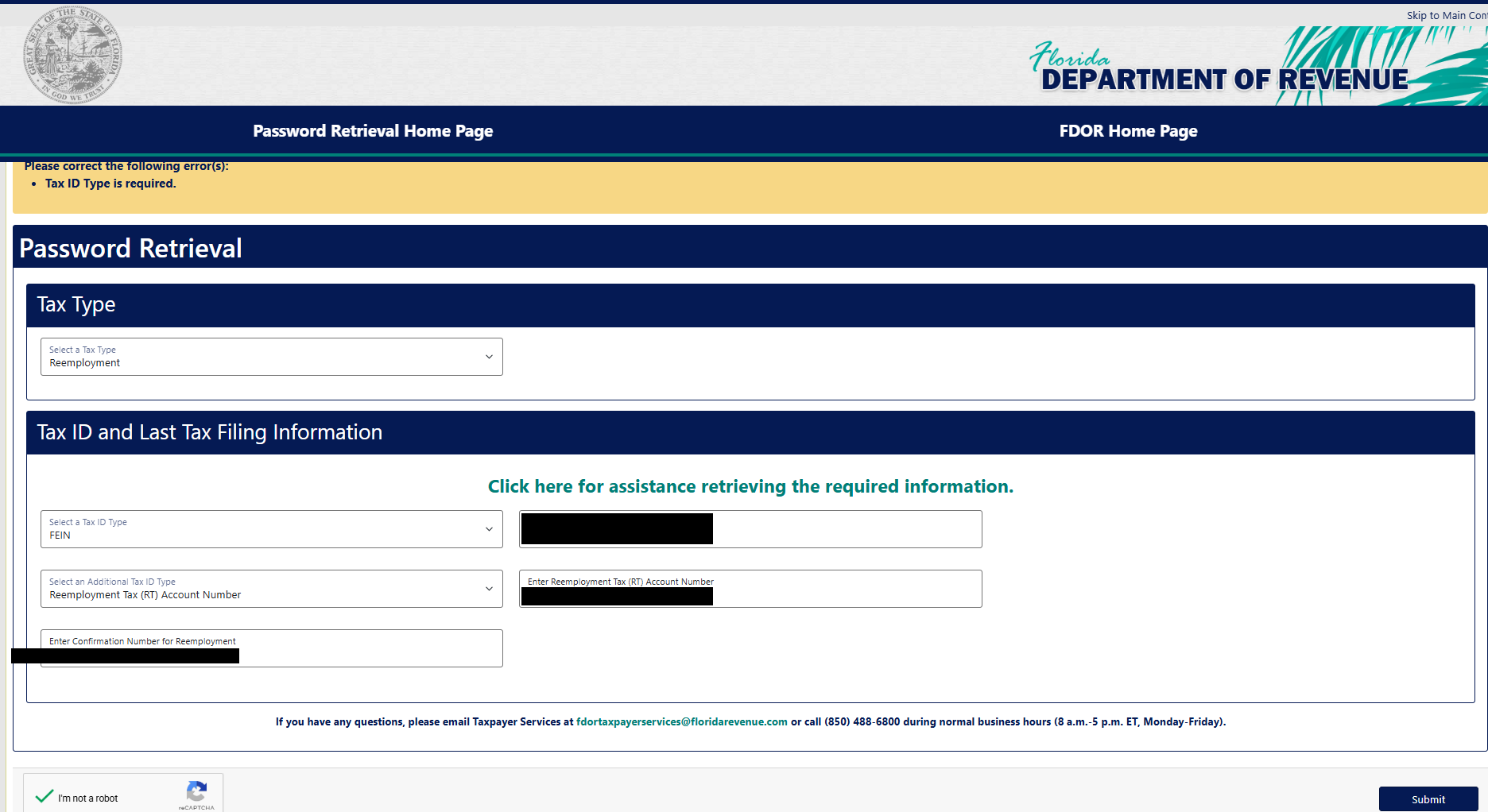
Because the August 2026 system change wiped every saved credential, the fastest way back in is Password Retrieval, not a support call. Select Reemployment as the Tax Type, enter your FEIN or RT account number, and supply the confirmation number from your last filed return — found under your filing history in Online Transactions — then submit to regain access.
The Takeaway
Filing Form RT-6 isn’t complicated once you’ve walked through it once, but the August 2026 system change caught a lot of Florida employers off guard because saved logins simply vanished with no notice inside the old portal. If your business hasn’t filed reemployment tax since the transition, log in early rather than waiting until the next deadline, so any credential or navigation issues get sorted out before the clock runs out.
If you’d rather not be the one clicking through five tabs every quarter, OliRam Advisors handles payroll filings — including RT-6 — for South Florida businesses, migration or no migration.
Sources
- Florida Department of Revenue — eFile and Pay Reemployment Tax
- Florida Department of Revenue — Reemployment Tax Return and Payment Information
- Florida Department of Revenue — Form RT-8A, Correction to Employer's Quarterly or Annual Domestic Report
- Florida Department of Revenue — Employer Guide to Reemployment Tax (GT-800002)